This is the firmware update file for the ICS7B, ICS7C, ICSW7C, WT7C, 22B, 22C, W22C, WT22C, W22B, W7CPT, W22CPT, 7G, 22G, 7F , 22F NOT FOR THE H7D or 7/22D or 7/22E range.
Step 1 – Download the Update File
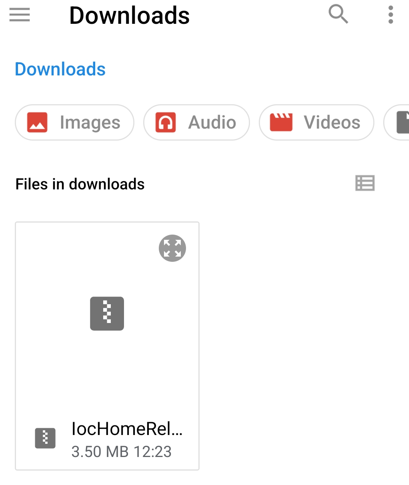
At the bottom of the article, download the ZIP file provided.
Do not unzip, rename, or modify the file. Leave it exactly as downloaded.
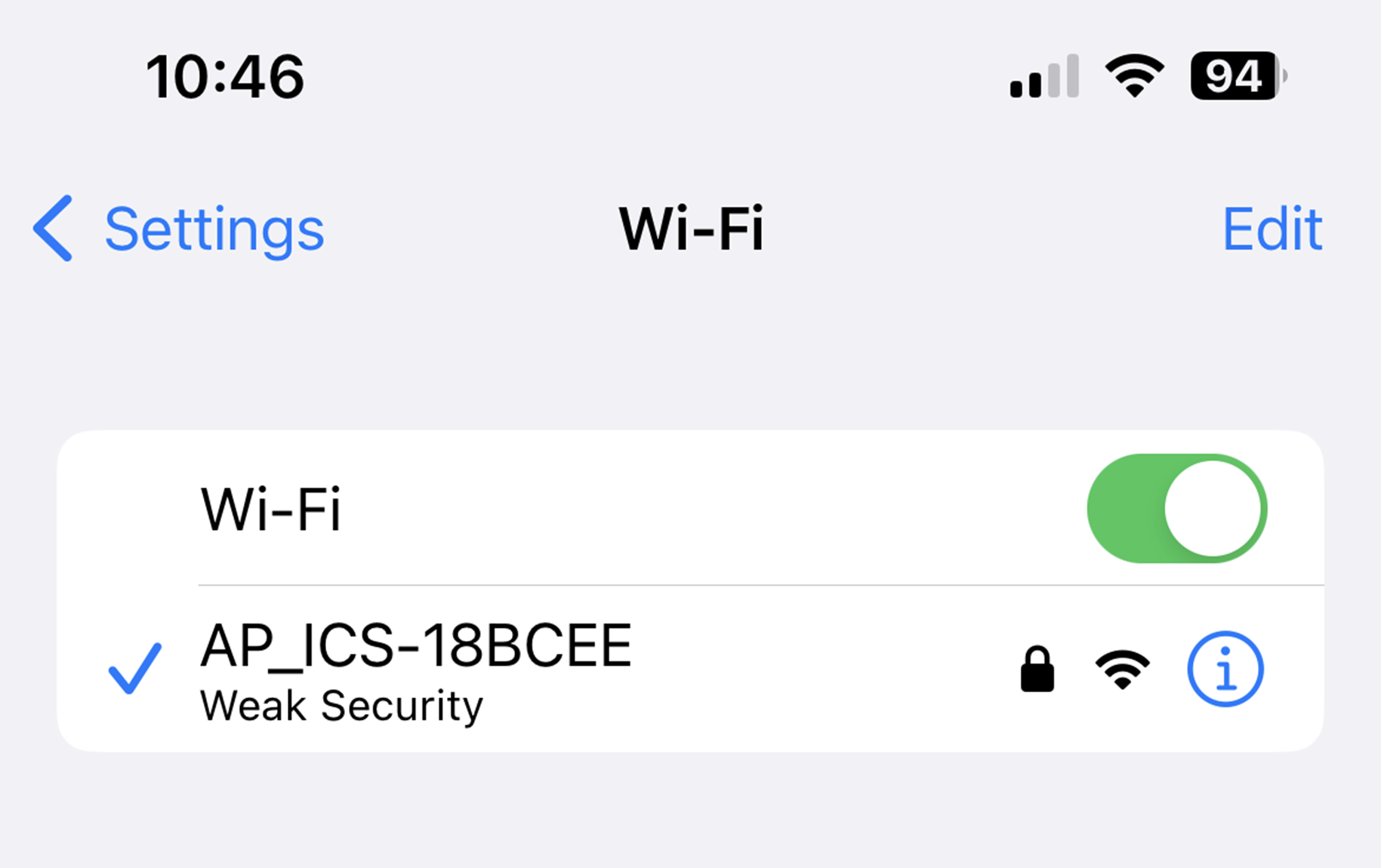
Step 2 – Connect to the Charger’s Wi‑Fi Hotspot
Each charger broadcasts a Wi‑Fi hotspot named: ICS-2.4GHz-XXXXXX
- Connect to this signal.
- Enter the password: ics654321
- Stay next to the charger to ensure the connection remains stable.
Step 3 – Log In to the Charger Interface
1. Open your device’s default browser
iPhone → Safari
Android → Chrome
2. In the address bar, enter 192.168.10.1
3. When prompted, log in using:
Username: install
Password: icspass21 (default unless changed previously)
If prompted to create a new password, create one with No Special Characters and make a note of it.
5. Log in again with:
Username: install
Password: Your new password
If no password‑change prompt appears, this means a password change has already been actioned. Please note that once this is changed, iCS have no way of resetting this password so please ensure it's memorable.
Step 4 – Start the Firmware Upgrade
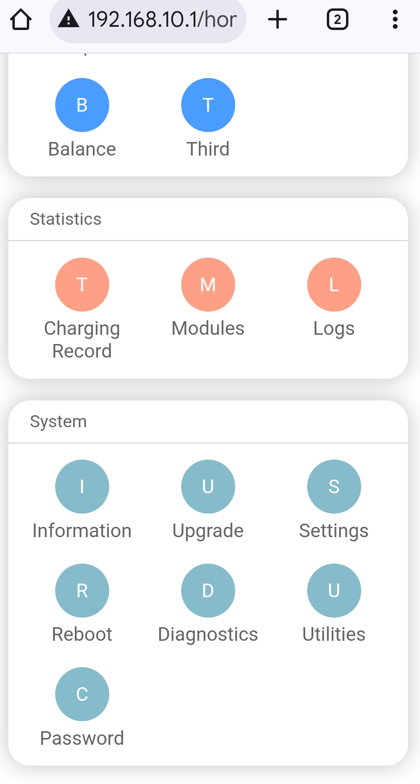
Once logged in, navigate to the System section.
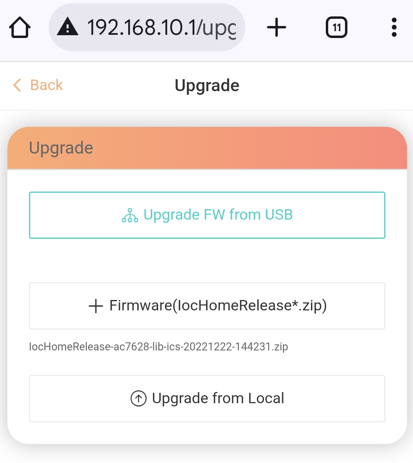
Click on the Upgrade icon.
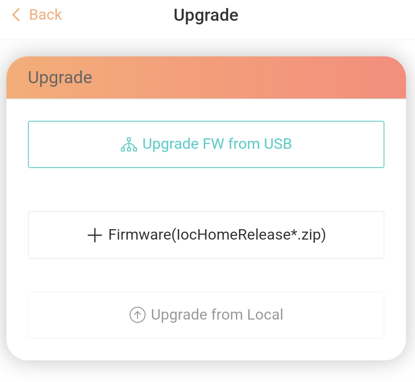
Select "+ FIrmware(HomeRelease*.zip)"
You will then need to locate the Zip file downloaded in Step 1 and select it.
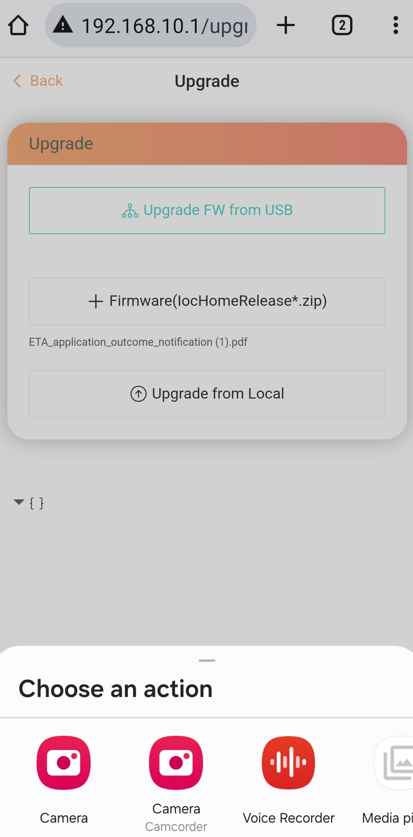
Once the correct file has been selected, press "Upgrade from Local"
Once the charger has successfully updated, it will reboot for a few minutes. Once rebooted, re-connect to the chargers Wi-Fi signal and log into the configuration page 192.168.10.1 with the following details:
Username: install
Password: icspass21
It will then ask you to change the password, re-enter the existing password (icspass21) in the old password box and then create the new password. DO NOT USE SPECIAL CHARACTERS.
Please note that once this is changed, iCS have no way of resetting this password so please ensure it's memorable.
Once the password has been changed, log back in and follow the setup wizard to pair your charger to the internet.
Was this article helpful?
That’s Great!
Thank you for your feedback
Sorry! We couldn't be helpful
Thank you for your feedback
Feedback sent
We appreciate your effort and will try to fix the article