If your charger is not saving settings, please push this firmware file through the charger by following the below steps.
Step 1 – Download the Update File
At the bottom of the article, download the ZIP file provided.
Do not unzip, rename, or modify the file. Leave it exactly as downloaded.
Step 2 – Connect to the Charger’s Wi‑Fi Hotspot
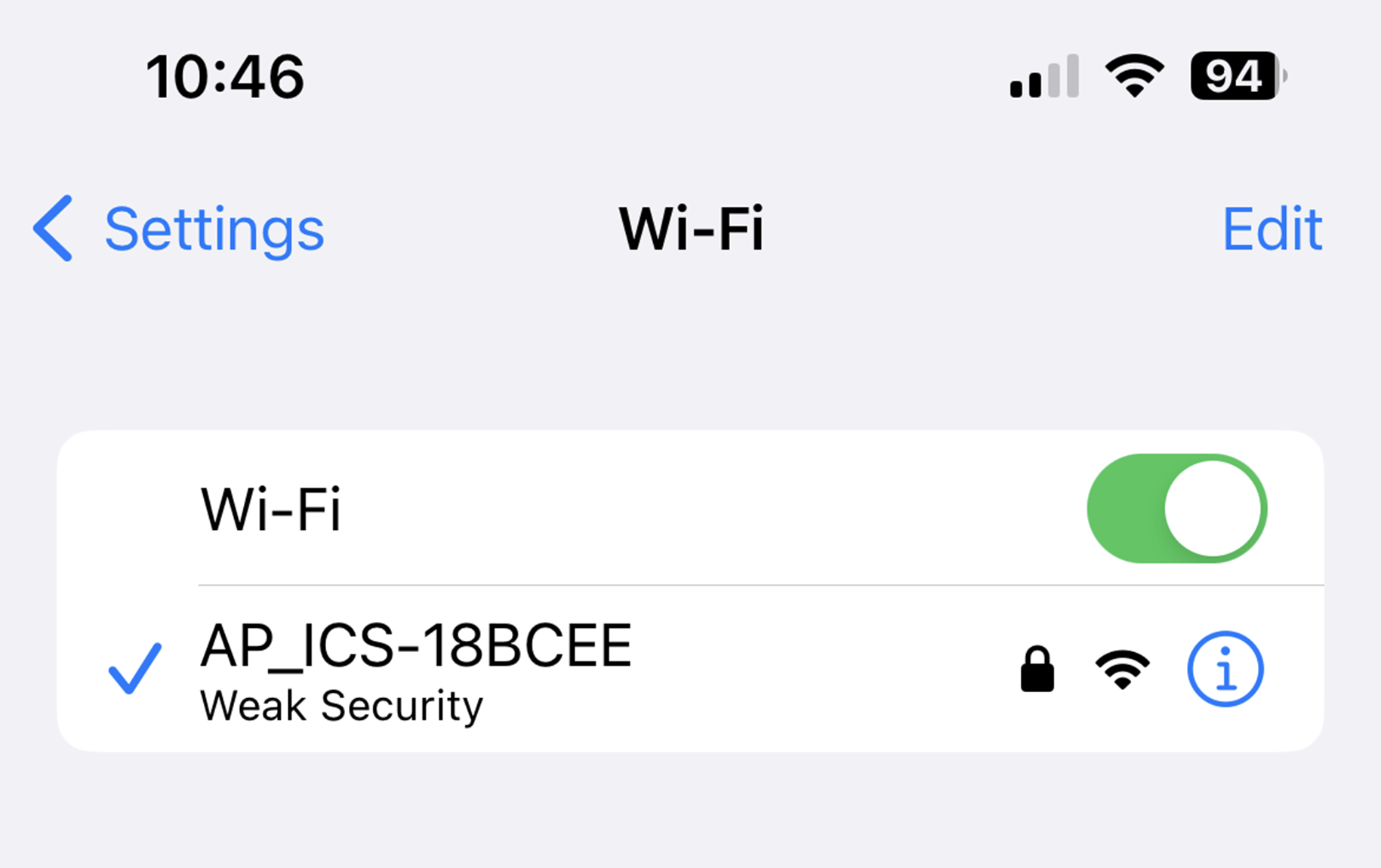
Each charger broadcasts a Wi‑Fi hotspot named: ICS-2.4GHz-XXXXXX
- Connect to this signal.
- Enter the password: ics654321
- Stay next to the charger to ensure the connection remains stable.
Step 3 – Log In to the Charger Interface
1. Open your device’s default browser
iPhone → Safari
Android → Chrome
2. In the address bar, enter 192.168.10.1
3. When prompted, log in using:
Username: install
Password: icspass21 (default unless changed previously)
If prompted to create a new password, create one with No Special Characters and make a note of it.
5. Log in again with:
Username: install
Password: Your new password
If no password‑change prompt appears, this means a password change has already been actioned. You can reset it by temporarily connecting an Ethernet cable from your router to the charger and contacting the technical department once fitted.
Step 4 – Start the Firmware Upgrade
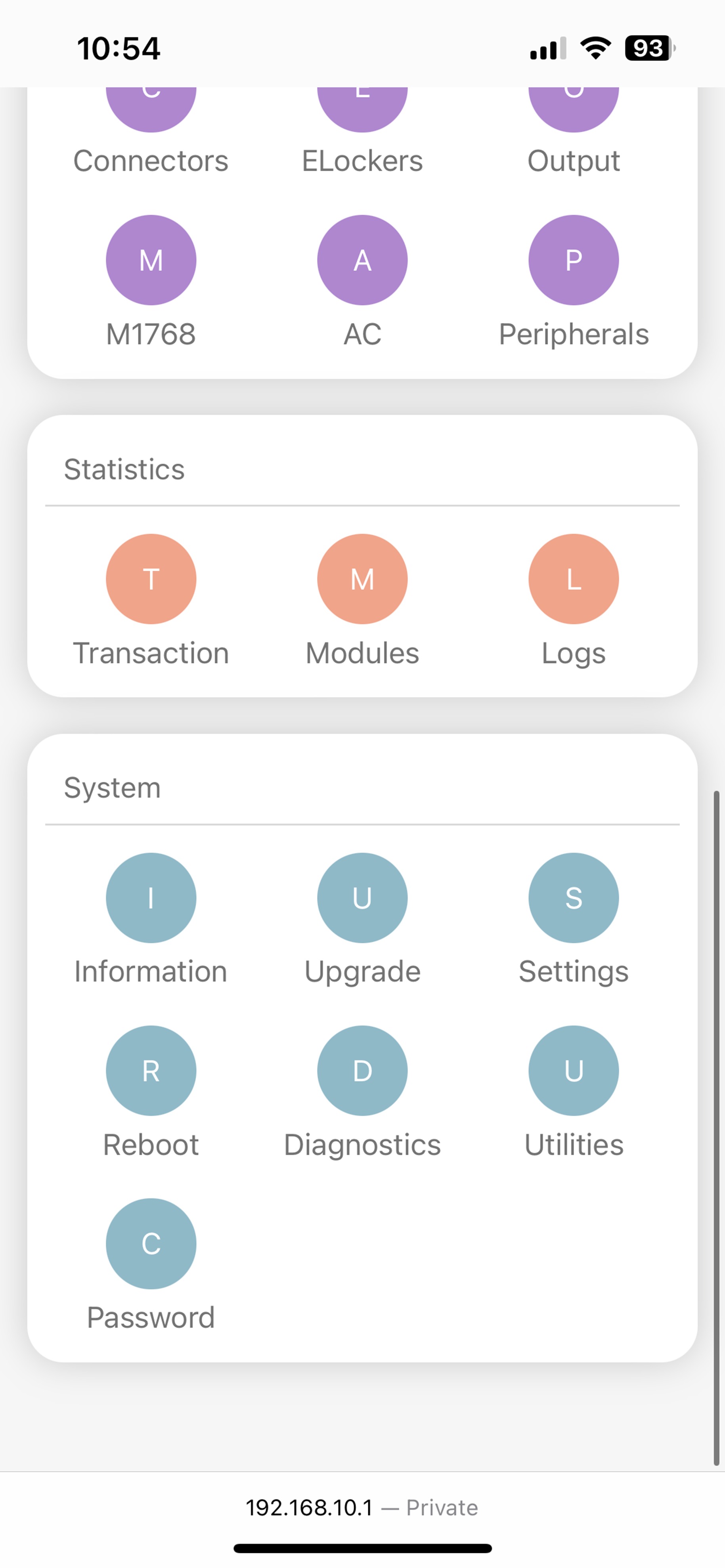
Once logged in, navigate to the System section.
Click on the Upgrade icon.
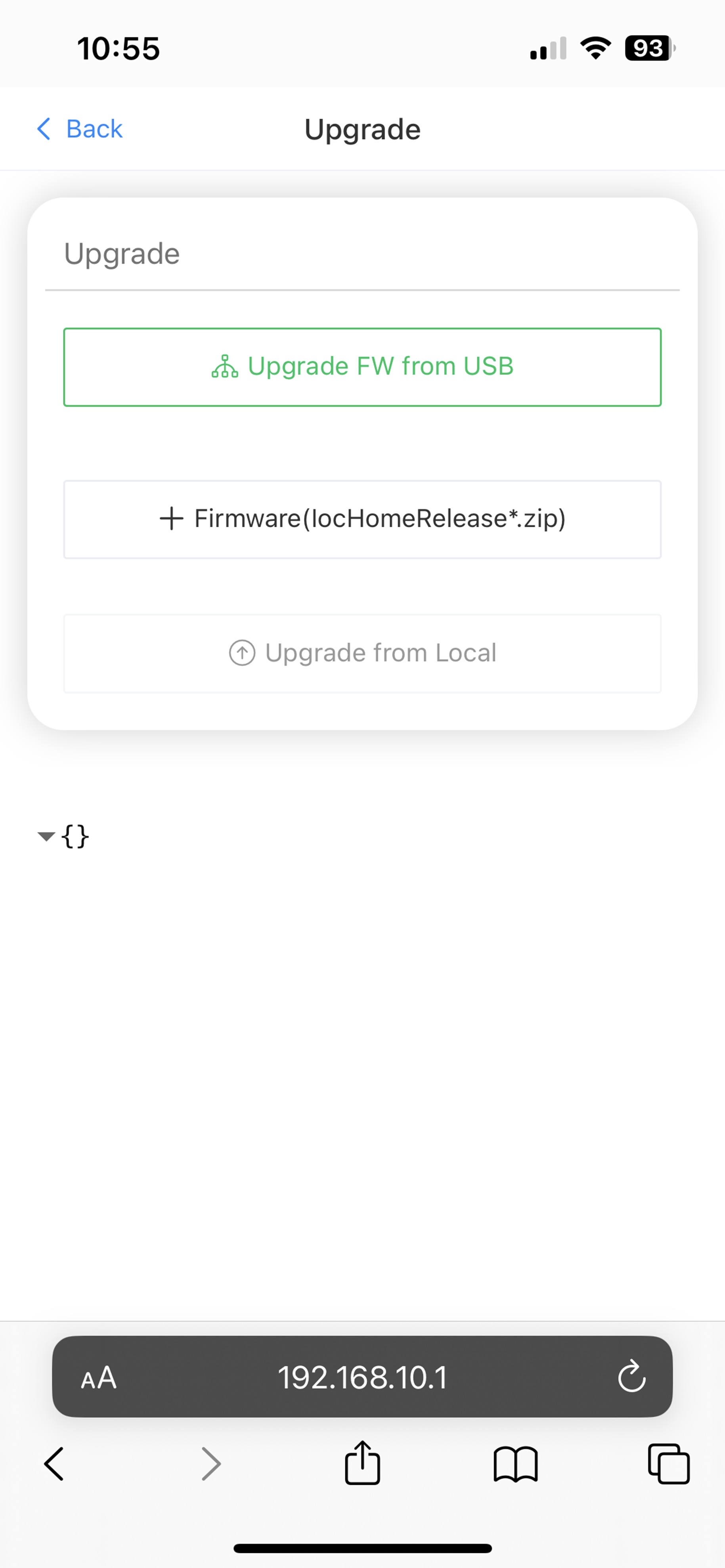
 Press the '+ Firmware' button and upload the file attached. Once attached, press 'Upgrade from Local' the charge point will then update and reboot - Please give 5 minutes for the charger to update.
Was this article helpful?
That’s Great!
Thank you for your feedback
Sorry! We couldn't be helpful
Thank you for your feedback
Feedback sent
We appreciate your effort and will try to fix the article