This is the firmware is for the security update for the chargers for the ICSW7C, WT7C, W22C, WT22C, W22B, W7CPT, W22CPT (NOT FOR THE H7D) to be used on the iCS2.0Lite Free APP.
Step 1 – Download the Update File
At the bottom of the article, download the ZIP file provided.
Do not unzip, rename, or modify the file. Leave it exactly as downloaded.
Step 2 – Connect to the Charger’s Wi‑Fi Hotspot
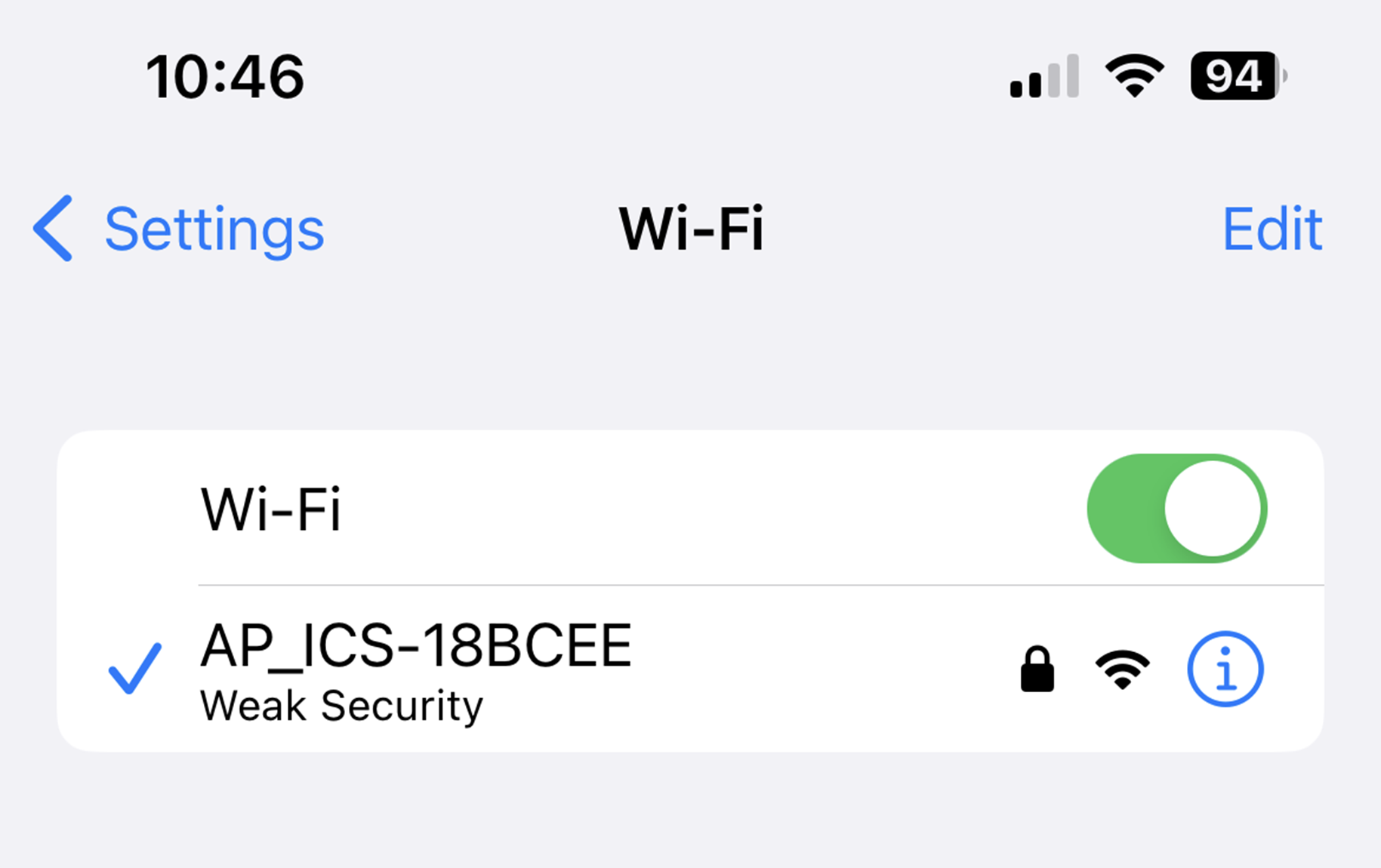
Each charger broadcasts a Wi‑Fi hotspot named: ICS-2.4GHz-XXXXXX
- Connect to this signal.
- Enter the password: ics654321
- Stay next to the charger to ensure the connection remains stable.
- Once connected, you should have a ticket next to the signal name.
Step 3 – Log In to the Charger Interface
1. Open your device’s default browser
iPhone → Safari
Android → Chrome
2. In the address bar, enter 192.168.10.1:8080
3. When prompted, log in using:
Username: install
Password: icspass21
Once logged on, go to ‘system’ at the top of the screen

4. Press 'choose file' and select the firmware file downloaded in step 1.
Once selected press ‘Upgrade from Local’ and wait for the screen to say the upload was successful.
After the screen displays 'Upload Success/complete', scroll down and press 'Reboot All' and confirm. The charger will then reboot.
When prompted, log in using:
Username: install
Password: icspass21
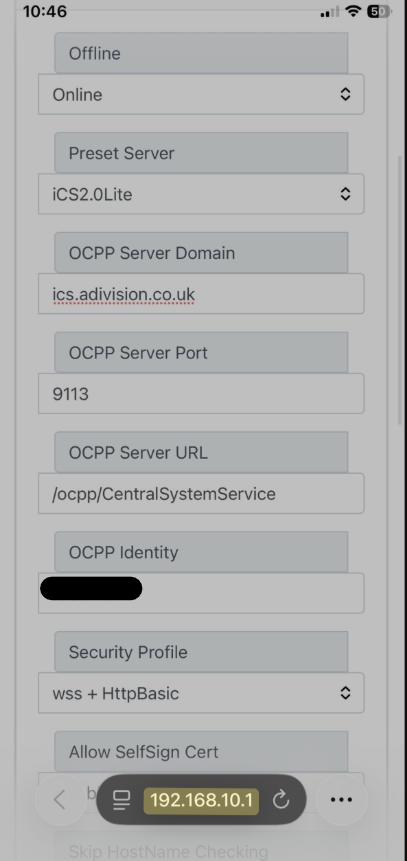
2. Once logged on, click on Basic and a drop down list should appear. Input the below information in each heading:
Offline → Online
Preset Server → ICS2.0Lite
OCPP Server Domain → ics.advision.co.uk
OCPP Server Port → 9113
OCPP Server URL → /
OCPP Identity → Serial Number of your charger. This starts with ICSB and can be found on the left hand side of the charger.
Security Profile → WSS+http basic
File Path → Baltimore_Cybertrust
Example below of how to enter the information:
Step 5 - Internet Connection
1. Click on Network, scroll down until you see Wi-Fi SSID with a 'Scan' button. Press Scan.
The charger will now search for all available Wi-Fi signals in the area. After waiting ten seconds, press the drop down arrow to the left of the scan button.
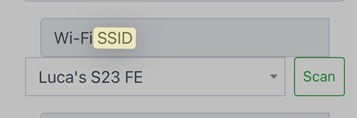
2. Two boxes below, the device will ask for your properties Wi-Fi Password. Input the password and ensure there's no spaces, before or after.
Step 6 - Reboot
After you have completed the previous steps, scroll down to the bottom of the webpage and press 'Reboot All' and confirm. The charger will reboot and connect to the ICS2.0Lite app.
Was this article helpful?
That’s Great!
Thank you for your feedback
Sorry! We couldn't be helpful
Thank you for your feedback
Feedback sent
We appreciate your effort and will try to fix the article